 Figxit
Autocomplete in the VS Code and Cursor terminal
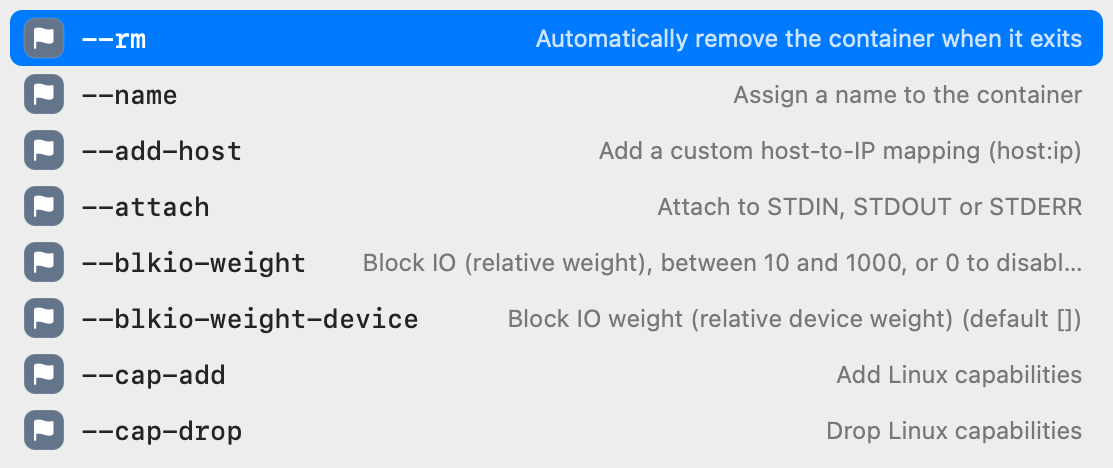
Figxit shows its suggestion list under the cursor in the terminal panel of VS Code and Cursor on macOS, for zsh, bash, and fish. It needs the Accessibility permission to find the panel inside the editor window.
Apple Silicon, macOS 13 or later. zsh, bash 5, or fish 4. tmux is optional. No account, no AI chat, no telemetry.
Why an editor terminal needs Accessibility
The Figxit list is a macOS window that sits over the editor. To put it under the cursor, Figxit needs the position of the terminal panel on the screen. macOS gives only the position of the editor window, and the terminal panel is one part of it, under the code.
With Accessibility, Figxit reads the frame of the focused terminal text area, and your shell gives the cell the cursor is in. The list opens under the word you type, in the panel and nowhere else.
VS Code and Cursor are built on Electron, which keeps its accessibility tree off until an app asks for it. Figxit turns it on the first time you type in the terminal panel, so the first list after the editor starts can be missing.
Editors
| Editor | Terminal panel |
|---|---|
| VS Code | Works, with tmux and without |
| Cursor | Works, with tmux and without |
| Other editors built on VS Code | Same terminal, not tested yet |
| Zed | The list stays hidden. Zed does not report its terminal panel to Accessibility. |
| JetBrains IDEs | Not tested yet |
Two lists in VS Code
Recent versions of VS Code have terminal suggestions of their own, and they are on by default. With Figxit running, both lists open. To keep only the Figxit list, add this line to the settings.json of VS Code:
"terminal.integrated.suggest.enabled": false
In Cursor, this setting is off by default.
What the list shows
- Subcommands and options for 700+ tools from the open source Fig completion specs, each with a description.
- The targets of the Makefile and the scripts of package.json in the folder of the terminal.
- Live values, such as git branches after
git checkoutand hosts afterssh. - With Atuin installed, rows ordered by what you use most in the current project.
Set up
- Download Figxit.dmg, open it, and drag Figxit to Applications.
- Open Figxit and click Set Up for your shell in the setup window. It adds one line to the config file of your shell, which the terminal of VS Code and Cursor also loads.
- Open a new terminal in the editor and type a command. The first time, Figxit opens its setup window. Click Allow… on the Panes and editors row, then turn on Figxit in the list that System Settings opens.
The lines for each shell are on the pages for zsh, bash, and fish. In tmux inside the editor, the same steps apply: see autocomplete in tmux.
Questions and answers
Does Figxit work in the VS Code terminal?
Yes, on macOS, in the terminal panel of VS Code, with tmux and without. It needs the Accessibility permission.
Does it work in Cursor?
Yes. Cursor uses the same terminal as VS Code, and Figxit works there in the same way.
Why does Figxit need Accessibility in an editor?
macOS gives the position of the editor window, and not of the terminal panel inside it. With Accessibility, Figxit reads the position and size of the terminal text area. It does not read the text.
VS Code shows its own suggestions too. How do I keep only one list?
Set terminal.integrated.suggest.enabled to false in the VS Code settings. In Cursor, that setting is off by default.
Does it work in Zed or in JetBrains IDEs?
Not in Zed: Zed reports only its window to Accessibility, not its terminal panel, so the list stays hidden. JetBrains IDEs are not tested yet.